READYTrak
Kitting functionality
- We have added functionality to allow for “Kitting”. Kitting is defined as when a group of Items selected together at designated quantities and bundled into a “Kit”.
Kitting Configuration
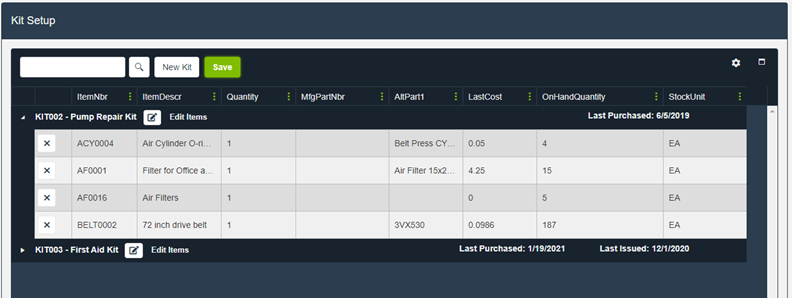
- Kits are configured under the System Setup -> Inventory Screen as shown in the sample below.
- A Kit needs to be created with a specified Kit ID and Name, Items are pulled into the Kit and qty is defined for each.
Kits on the Item Record
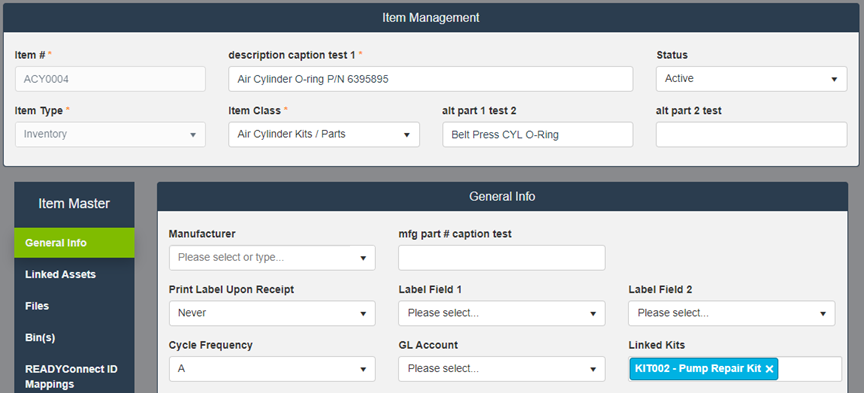
- On the Item record, there is a dropdown for the Linked Kits to allow users to add Items to Kits or move Items across existing Kits as shown in the sample below.
Issuing Kits
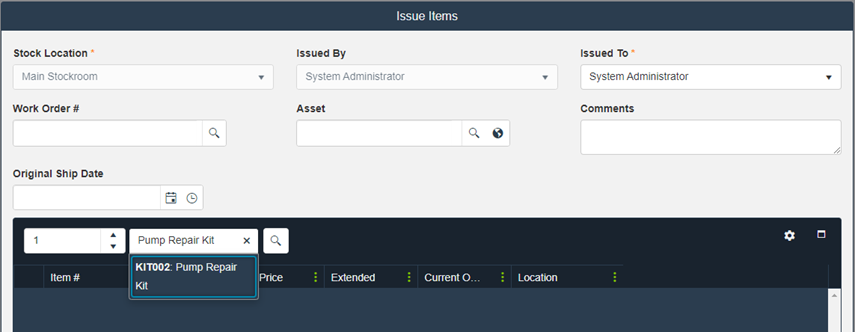
- Users can select from existing Kits on the Issue Items screen by typing the Kit ID or name in the existing Items search box. When selecting a Kit, all of the Items in that Kit will be pulled into the Issue record as shown in the sample below. By default, the Kit will only get pulled in if all of the Items in the Kit have enough On Hand qty.
- There is a secondary system configuration allowing users to add partial Kits. This will allow some of the Items in a Kit to be added that have enough On Hand qty even if some of the Items do not have enough.
Purchasing Kits
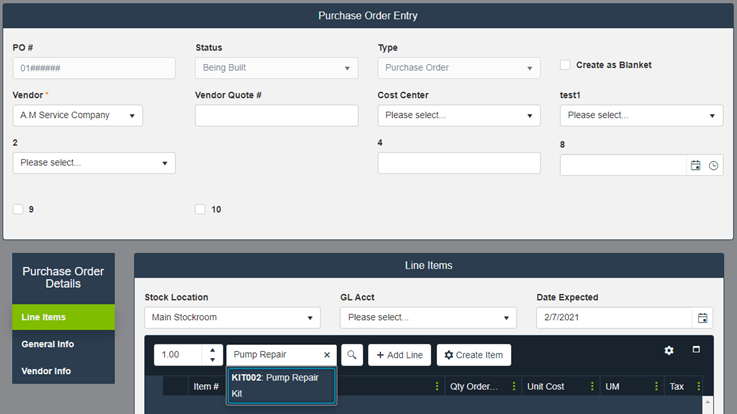
- Users can select from existing Kits on the Purchase Order creation screen by typing the Kit ID or name in the existing Items search box. When selecting a Kit, all of the Items in that Kit will be pulled into the PO record as shown in the sample below.
Transferring Inventory of Kits
- Users can select from existing Kits on the Inventory Transfer screen by typing the Kit ID or name in the existing Items search box. When selecting a Kit, all of the Items in that Kit will be pulled into the Inventory Transfer record as shown in the sample below. By default, the Kit will only get pulled in if all of the Items in the Kit have enough On Hand qty.
- There is a secondary system configuration allowing users to add partial Kits. This will allow some of the Items in a Kit to be added that have enough On Hand qty even if some of the Items do not have enough.

Non-PO Receiving of Kits
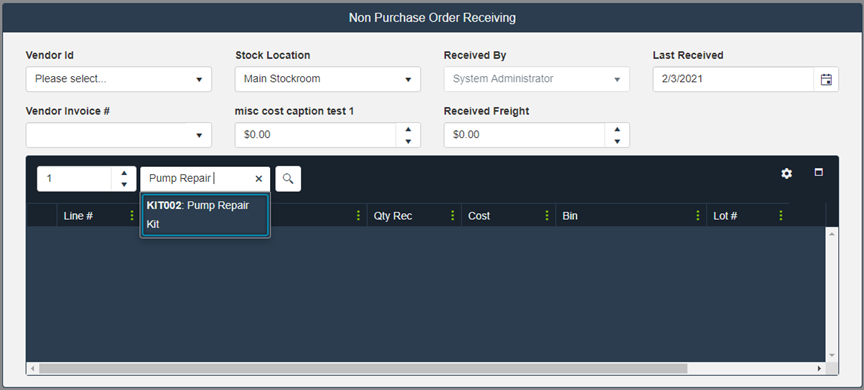
- Users can select from existing Kits on the Non PO Receiving screen by typing the Kit ID or name in the existing Items search box. When selecting a Kit, all of the Items in that Kit will be pulled into the record as shown in the sample below.
User Management
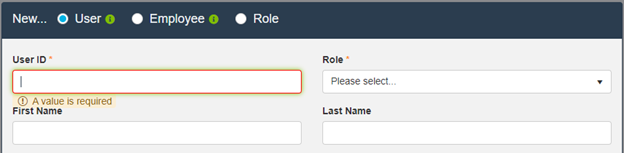
- The create User screen has changed to use radio buttons to choose between a New User, Employee, or Role as shown in the sample below.
Minor Changes
-
We have made changes to the ‘Vendor Classes’ to allow for the records to be used more universally across the application.
-
We removed Supplier as an available option.
-
Contractor and Manufacturer Vendor Classes will now be available for use as Vendors on POs.
-
Manufacturers also appear under the existing Manufacturer dropdowns under Assets and Items.
-
Contractors can now appear on Work Orders under the Personnel card for when work being done is from outside your organization.
-