READYAsset
Work Order Screen Updates
- We have enhanced the Asset card within a Work Order record
- We have added scaling of the size of the card depending on the number of Assets linked for improved visibility.
- We have added coloring to the Asset Type icon to match the current status of the Asset.
- We have updated the fields related to Warranty and Criticality of the associated Assets to only show when applicable.
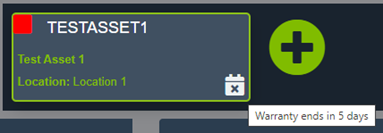
- A calendar icon will show on the Asset on the Work Order Summary when there is a Warranty ending within 30 days. Hovering on the calendar icon will show a tooltip indicating the Warranty will expire in X days. Please refer to the sample below.
- The Criticality will show when CAP functionality is enabled and the Asset is Critical.
- A calendar icon will show on the Asset on the Work Order Summary when there is a Warranty ending within 30 days. Hovering on the calendar icon will show a tooltip indicating the Warranty will expire in X days. Please refer to the sample below.
- We have added additional prompts for when the Asset Status or Utilization values are updated. When the changes are confirmed the Asset Status and applicable color will be updated within the Work Order.
- We have updated the Work Quality card to conditionally show when the Work order has an associated Quality Checklist.
Minor Improvements
- Performance improvements have been made around assigning and approving multiple Work Orders in batches.
- We have improved the notification emails under the Asset Master -> Production Info card to allow incorporation of multiple email addresses delimited by a semicolon (;).
- We have improved the TPM Date/Time entry functionality to allow entry of a back dated entry data point.
READYTrak
Label Quantity when Receiving Items
- We have improved the functionality around printing labels when receiving Items; users can now specify the number of labels to print when the Print Label Upon Receipt value is set to ‘Prompt’ in the Item record. The default amount of labels will start at the quantity being received.
Minor Improvements
- We have improved the way the software is storing specific dates in Purchase Orders.
Additional Modules
Minor Improvements
-
We have improved the Project Finder by allowing filtering on multiple selections for Status.
Additional Functionality
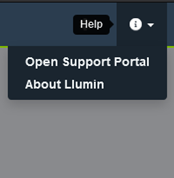
Open the LLumin Support Portal from Help Menu
- We have added a link to the LLumin Support Portal from within the Help Menu
Please see the sample below:
Organization Levels Captioning
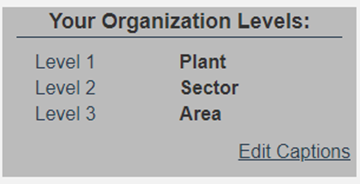
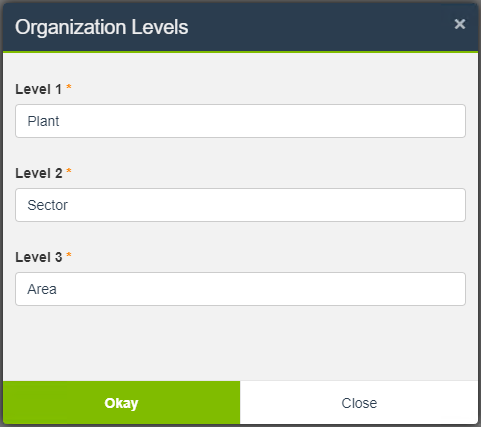
- In this release, we have added the functionality to re-caption the organization levels to allow further customization of your environment to match your internal organizational structure.
- The default Organization Levels captions when the environment is set up are Division (Level 1), Department (Level 2), and Work Cell (Level 3).
- The changes to the captions will cascade across the entire environment so all applicable dropdowns and field lists will get updated when the captions are updated.
- Three reporting functions have been added to the formula functionality in order to dynamically report on the Organization Levels captions called OrgLevel1(), OrgLevel2(), and OrgLevel3().
- Any changes to the Organization Levels will be reflected on the Activity Log when those values are updated on a record. Previous captions will be held for existing activities.
- To access the re-captioning screen, click on System Setup -> Organization Card and in the upper right-hand corner of the Organization hierarchy is a grey box with the levels and their captions as shown in the example below. Clicking on Edit Captions will open the window to edit.