READYTrak
Purchase Order
- You can now filter by fields that are disabled by role level data authorization. For example, you can restrict which users are allowed to change the Vendor but still allow them to filter by Vendor in Purchase Order Finder.
- We have made improvements to the Item Reorder List to add the Item Location, Item Class, Item Type, and Item User Defined Fields as available columns.
Inventory
- We have added the functionality, when creating a new Item, to add the newly created Item to an existing Cycle Count list. There will be an “Add to Cycle” option in the Item creation screen which, when clicked, opens a dialog for the user to select from the list of Cycles based on the chosen Stockroom. When the Cycle is chosen, the Items in that Cycle will be shown. The User will be able to add the Item to the end of the list or if an Item is chosen in the Cycle, the new Item will come before the selected Item in the list. Updating the Stockroom will reset the Cycle dropdown values.
- We have improved the Print Labels functionality found under the Inventory menu to allow you to prompt for quantities instead of printing the on-hand quantities.
- We have added Manufacturer as an available column in the Item Finder and as a Filter Field dropdown.
Modules
System Setup
- Captions Card
- We have added the functionality to add/edit the captions of the LLumin Standard fields and the User Defined fields.
- A new card under the System Setup has been added as shown below:

- When the card is opened, the list of modules and their respective LLumin Standard fields and User Defined fields is displayed with the field type (Alpha-Numeric, Numeric, Date, Checkbox, Validated List), the LLumin Field Name, and their Current Caption. Please see the example below:
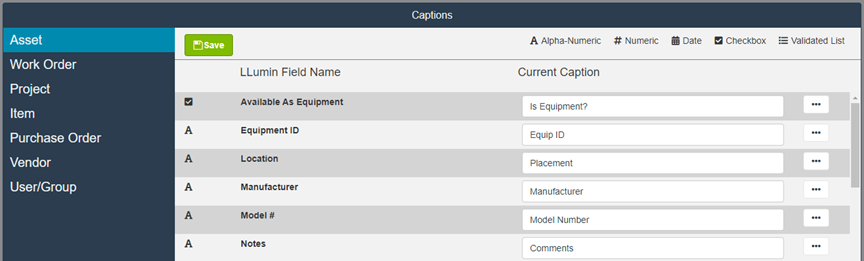
- Any changes to the field captions will be reflected through the rest of the software.
- We also will track changes to the Captions through the History screen opened by clicking the three dots menu -> History as shown in the sample below:


- As part of the Captions functionality, validation is present to show a warning message will be displayed when duplicates are present or if a Validated List is not captioned as shown in the samples below:


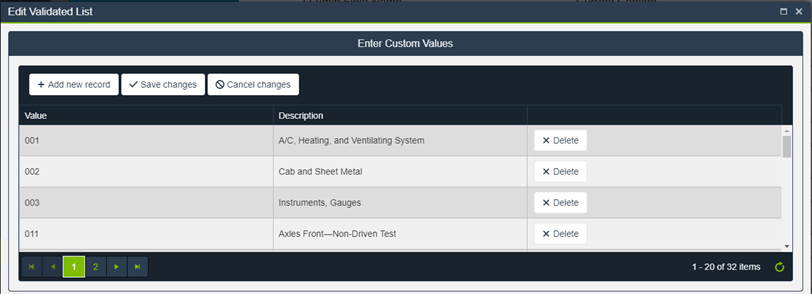
- Users will be able to edit the values in an existing Validated list or add values to an Alpha-Numeric UDF making it a Validated List by clicking on the three dots menu and clicking Edit Validated List as shown in the sample below:

- Organization Captions are also present under the Organization card under System Setup as shown in the sample below:

Reporting
- We have developed Standard Dashboards that will be provided under the Reporting module; we have added a new folder for “LLumin Standard Dashboards” and under that folder, sub-folders for READYAsset and READYTrak which include a Work Order dashboard and a Purchase Order dashboard respectively.
- Dashboard #1: Work Order Dashboard
- Work Order Compliance for the Current Month. This visualization shows the percentage of Work Orders that are completed On-Time for the current month.
- Count of Total Work Orders filtered by Date. This number will display all Work Orders for a specific time range, no matter what status they have.
- Count of Overdue Work Orders filtered by Date. This number will display all Overdue Work Orders for a specific time range.
- Costs of the Work Orders in the Last 30 Days. This tile displays the sum of Labor and Parts Costs of Work Orders due within the last 30 days.
- All Work Orders grouped by Status and filtered by Date.
- Work Orders Due Within 30 days shows the type of work, priority, assigned to, location, craft, estimated hours of work, total cost, and due date of any Work Orders due within the next 30 days.
- The “Period to Date Filter” is a date filter that applies to 3 of the tiles in this Dashboard. Switching the date bounds on this filter will change the data from the Total Work Orders tile, Overdue Work Orders tile, and All Work Orders by Status Visualization.
- Dashboard #2: Purchase Order Dashboard
- Vendor Compliance for the Current Month filtered by your company’s Top 10 most used Vendor. This visualization shows the percentage of Purchase Orders that are On-Time.
- Count of Open Purchase Orders filtered by Date. This number will display all Open Purchase Orders for a specific time range.
- Count of Overdue Purchase Orders filtered by Date. This number will display all Overdue Purchase Orders for a specific time range.
- All Purchase Orders grouped by Status and filtered by Date.
- Total Cost of Purchase Orders Expected Within 30 Days. This tile will display the total value in dollars of the Cost of Purchase Orders expected in the next 30 days.
- Count of Purchase Orders that were received in the last 30 days.
- Purchase Orders Expected Within 30 Days. This express report will display Purchase Orders that are Expected in the next 30 days, as well as the Vendor, Date Entered, Date Expected, Date Released, and Order Total ($).
- The “Period to Date Filter” is a date filter that applies to 3 of the tiles in this Dashboard. Switching the date bounds on this filter will change the data from the Open Purchase Orders tile, Overdue Purchase Orders tile, and All Purchase Orders by Status Visualization.
- Dashboard #1: Work Order Dashboard
Minor Improvements
- We have made improvements to the Home Page Grids card under the User Management module to allow the assignment of Home Page Grids at the User level as well as the User Role level.
- We have made improvements to the Dashboard Designer under the Reporting module to make the screens more readable and user-friendly.