Skip to main content
Version 22.2 Release Notes
Asset and Work Management
Home Page Grid Work Management
- We have added support for better management of work directly from the Home Page Grids.
-
Multi Assign Work Orders by checking the box next to the Work Orders to select them and then clicking the Assign button, a prompt will pop up showing a dropdown list of all Users/Employees with the “Assigned To” box checked.
-
Multi Enter Time by checking the box next to the Work Orders to select them and then clicking the Enter Time button, a prompt will pop up sequentially for each Work Order allow the user to enter time against each record selected.
-
Individual Start Timer by selecting one Work Order and clicking the Start Timer button; only one timer can be running at a time.
-
Individual Labor review by selecting one Work Order and clicking the Labor button; this button will only be available if the Work Order already has Labor entered against it.
-
Individual Checklist review by selecting one Work Order and clicking the Checklist button; this button will only be available if the Work Order has a Procedure with Checklist Steps linked to it.
-
Multi Complete Work Orders by checking the box next to the Work Orders to select them and then clicking the Complete button, a prompt will pop up showing the Completion dialog for each Work Order selected.
-
Multi Close Not Complete Work Orders by checking the box next to the Work Orders to select them and then clicking the Close Not Complete button, a prompt will pop up asking for confirmation before proceeding.

Inventory Control and Item Tracking
Home Page Grid Purchase Management
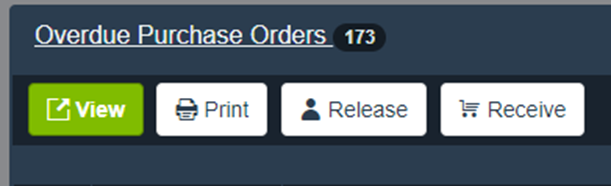
- We have added support for better management of purchases directly from the Home Page Grids.
-
Individually Release Purchase Orders by selecting the Purchase Order and clicking the Release button; this button will only be available if the Purchase Order is in a Pending Release status. A prompt will pop up asking for confirmation before releasing the Purchase Order.
-
Individually Receive Purchase Orders by selecting the Purchase Order and clicking the Receive button; this button will only be available if the Purchase Order is in a Released or Partially Received status. Selecting a Purchase Order and clicking the Receive button will navigate to the Receiving screen to complete the receipt.
Issuing
- We have addressed an issue preventing the Work Order cost properly updating when issued quantity is returned.
Inventory Transfers
- We have added support for Inventory Transfers to a Destination Stockroom not included within a user’s Data Authorization Rules.
Purchase Management
- We have added some intuitive logic that will provide a prompt informing the user that a Vendor/Stockroom is on the Item Reorder List when entering a new Purchase Order or reviewing an existing Purchase Order Depending on Purchasing history and current data.
Minor Changes
- We have added support for the “Enter” key to be pressed when using the Navbar quick search. Pressing the “Enter” key will open the first record returned in the search results.
- We will be implementing an updated Item Label template which will help avoid Item Descriptions from overlapping.