Training Videos attached for new functionality.
Asset and Work Management
Improved Work Order Details screen
- We are excited to announce an improved Work Order Details screen that is intended to reduce the number of clicks for common actions (i.e. adding labor time, issuing parts, etc.), make the best use of the screen “real estate”, and will ensure the Work Order Details screen is more “mobile device friendly” if the core application is opened on a mobile browser.
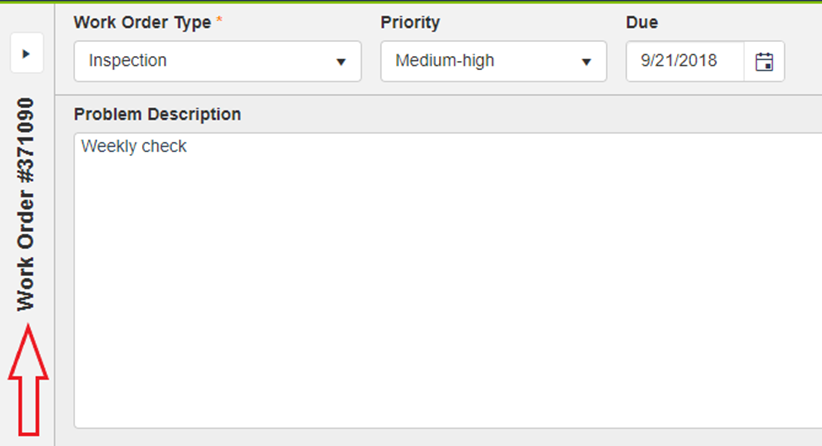
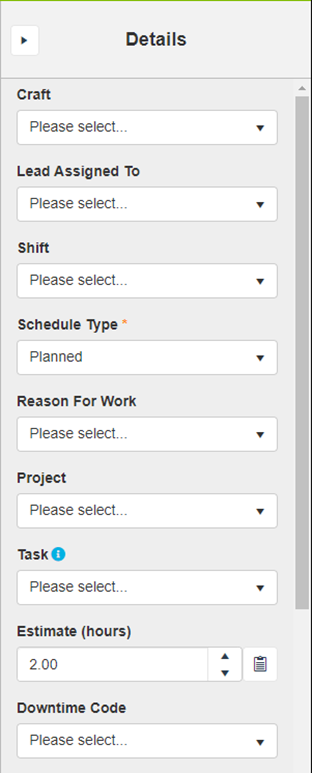
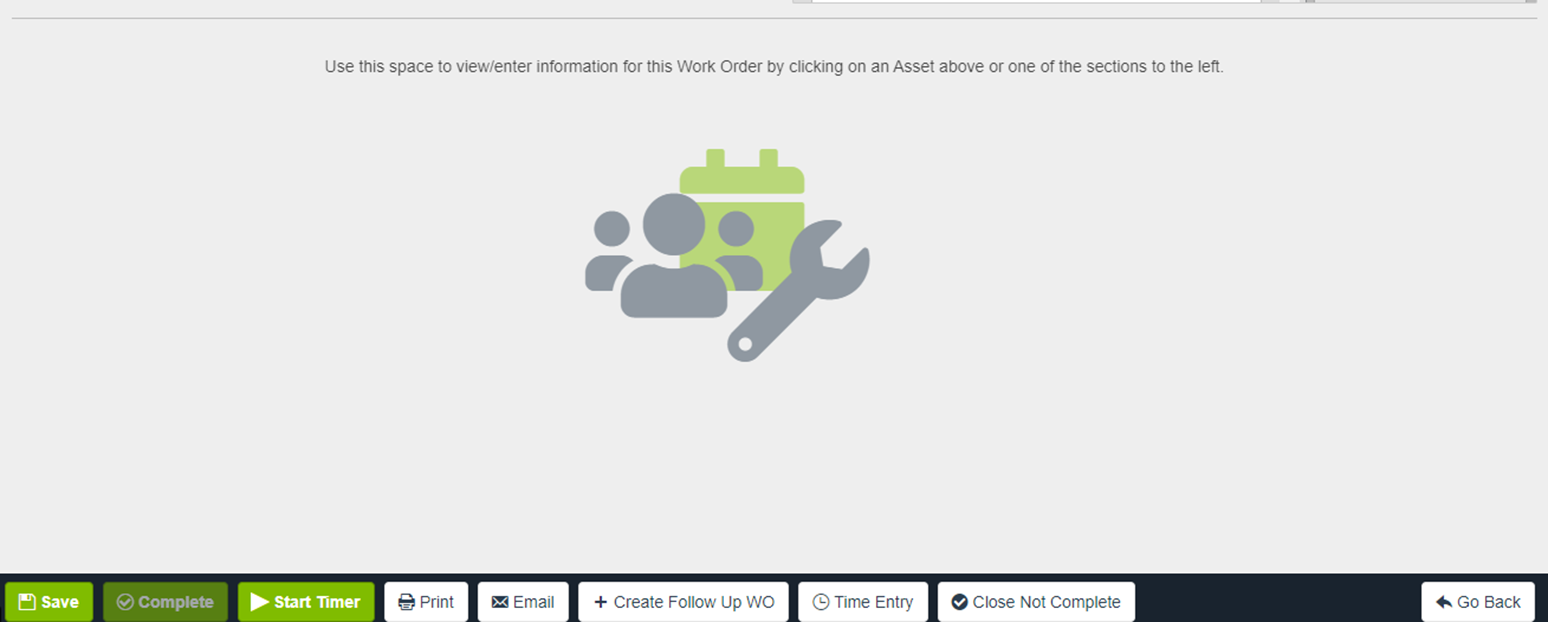
- There are four sections as outlined below, the Header, the Cards, the Workspace, and the Details.
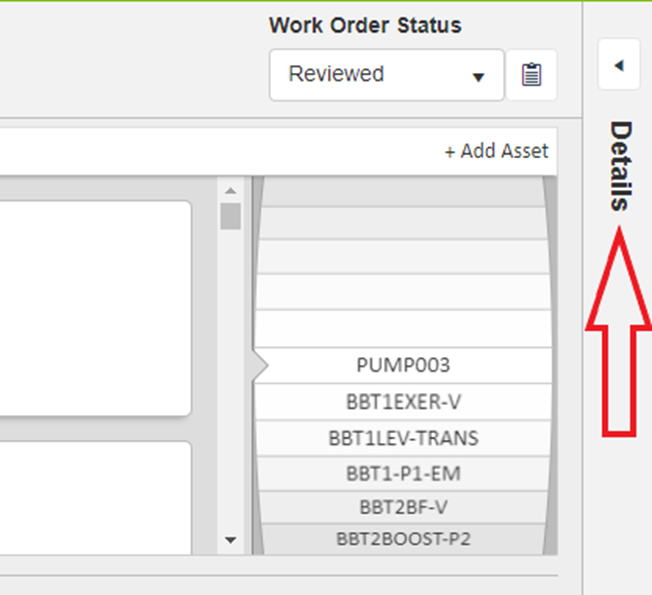
- The Header section includes the WO Type, Priority, Due Date, Status, Problem Description, and Asset listing which includes the new carousel view.
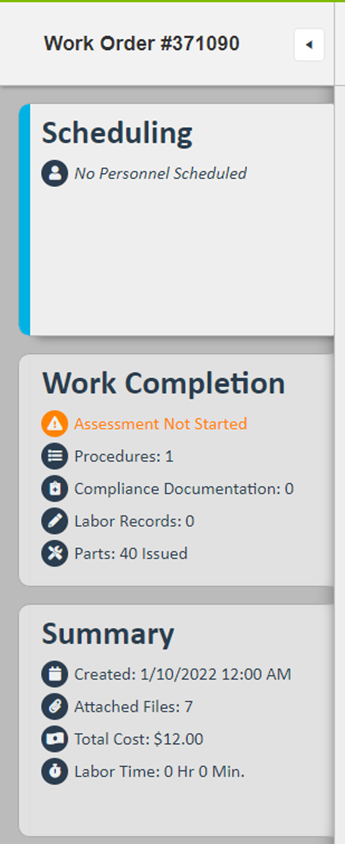
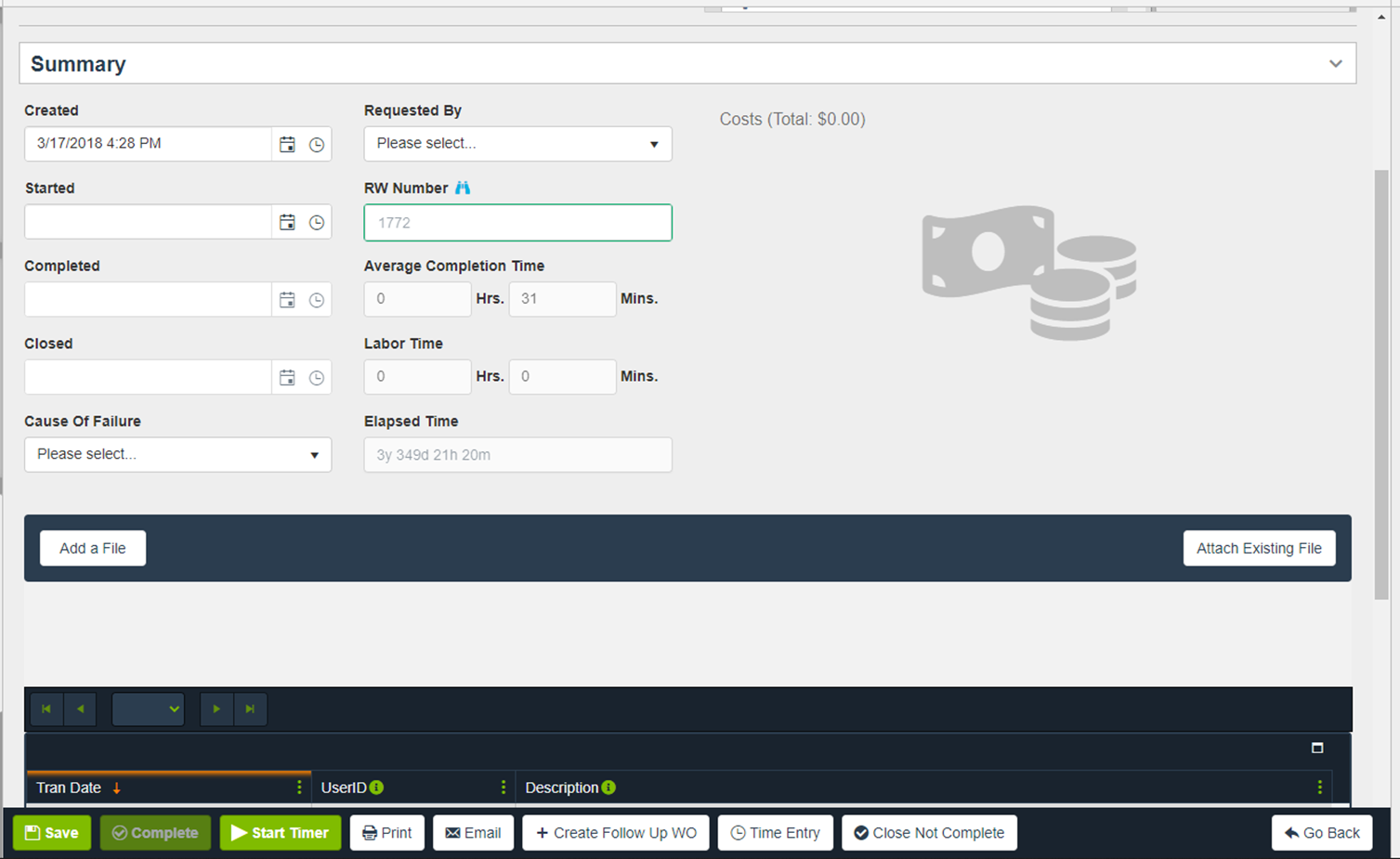
- The Cards section includes a high-level overview of the information found in the cards for Scheduling (i.e. scheduled personnel), Work Completion (i.e. Assessment Completion, Procedures, Compliance, Labor Records, and Parts Issued), and Summary (i.e. Created Date, Attached Files, Total Cost, and Total Labor Time)
- The Workspace section is a space to view the detailed information found within the cards mentioned above. Clicking a card will open it within the workspace and will allow the user to review the details and enter information as needed.
- The Details section will include commonly used fields such as Craft, Lead Assigned To, Shift, Schedule Type, Reason for Work, Project, Estimate, and any captioned User Defined Fields will be found in this section as well.
Examples of the Work Order Details screen
Full view of the new Work Order Details screen:
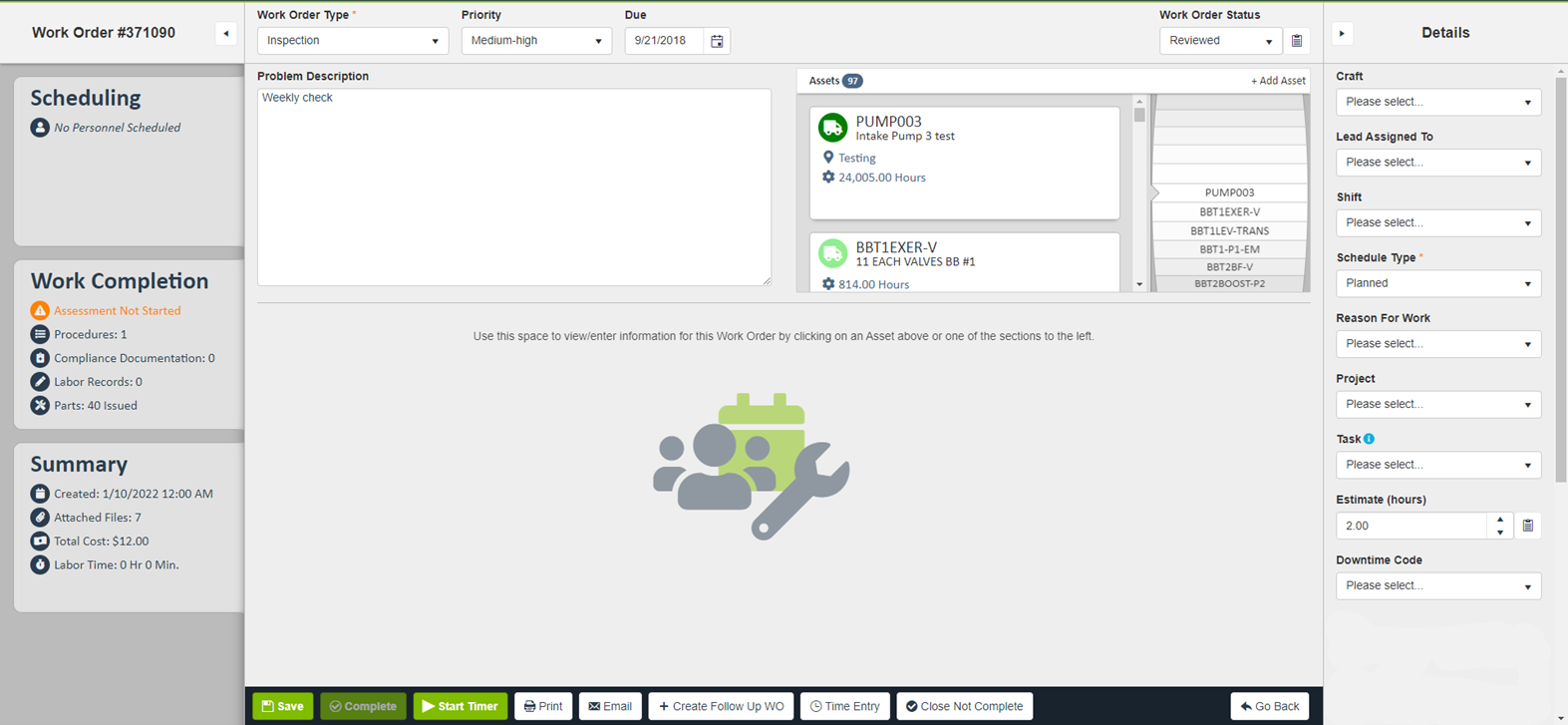
New Work Order Header section:
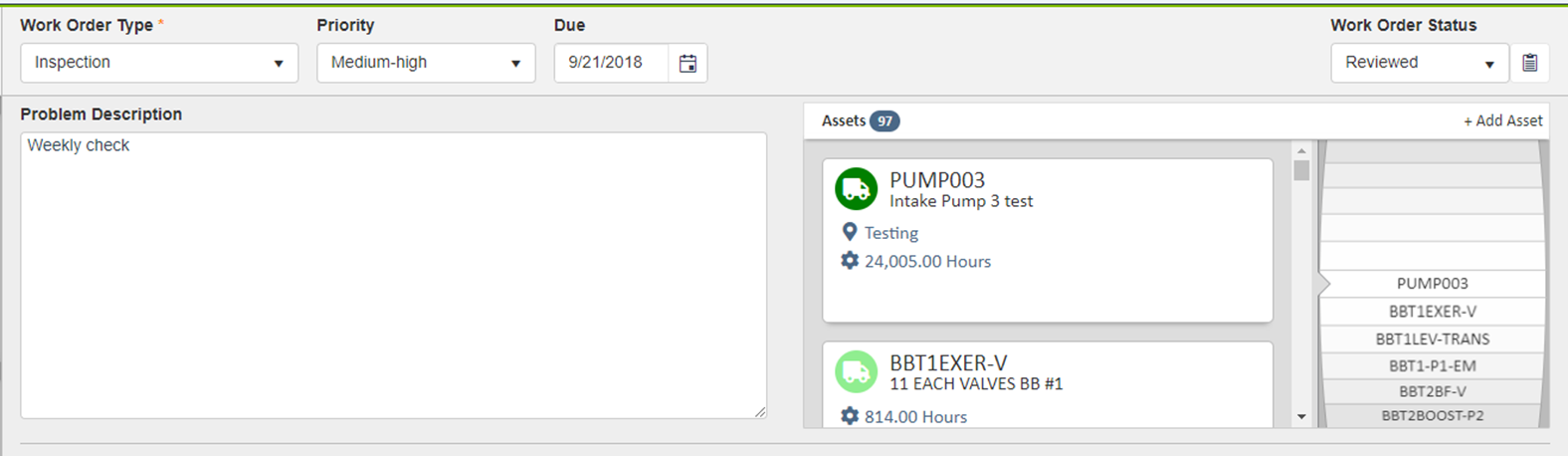
Closer look at the new Assets carousel:
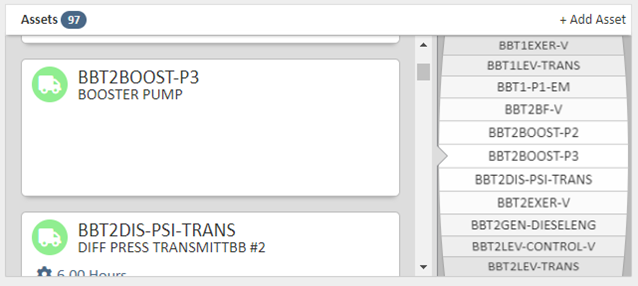
New Work Order Cards section open and collapsed:
New Work Order Details section open and collapsed:
New Work Order Workspace section default view and with Summary card open:
Inventory Control and Item Tracking
Updated Item Labels
- We have updated our Item Label Template to shrink the size of the bar code and enlarge the Item Nbr, Description, Alt Part 1, Alt Part 2 and Location fields where configured.
Homepage Analytics
Homepage Grids
- We have added a few new Homepage grids including a grid to show active Machine Tag data as shown below and a few different Labor Time grids to show data for “My Labor Time (Week)”, “My Labor Time By Craft (Week)”, and “My Labor Time By Division (Week)”.

Homepage Tiles
- To add to the usefulness of the Homepage, we are introducing dynamic Homepage Tiles that can show, at a glance, the most important KPIs for your organization.
- These Homepage Tiles contain:
- A tooltip that will show a description of the Tile when the cursor is hovered on it.
- A button to go to the applicable Finder applying the applicable filters for the tile. One example would be “Open Purchase Orders” that would filter the Purchase Order Finder for the “open” statuses.
- A button to refresh the content of the Tile.
- A button to split the KPI into a pie chart based on a dynamic grouping by various fields depending on the content. Referring to the example below, the content refers to Assets Undergoing Planned Maintenance so we can group on Asset Type as shown and the KPI changes from a count to a pie chart by Asset Type.


User Record Changes
On the User record, under the Homepage card, you can now add KPI tiles as well as pre-existing Home Page Grids as shown in the example below. Some of the pre-existing grids have been deprecated in lieu of the new tiles and are labeled as such.


There is also a Homepage preview to allow users to view a mockup of the currently selected grids and tiles in various screen sizes as shown below.

