Once you have signed up for the LLumin Support Portal, sign in using your email and password. CLICK HERE for more information on getting registered for the Support Portal.
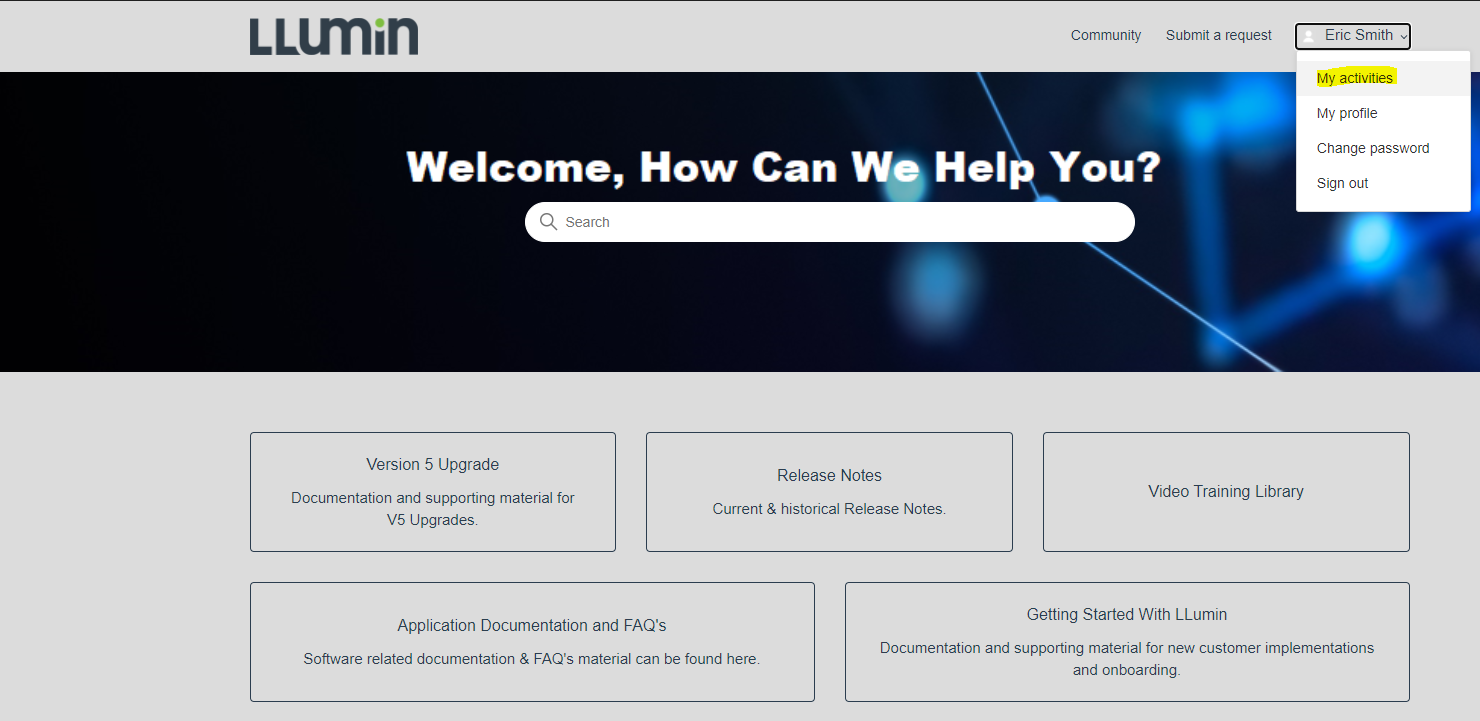
Once signed into the Support Portal, you can click on your name in the upper right hand corner and click on "My Activities" as shown in the screenshot below:
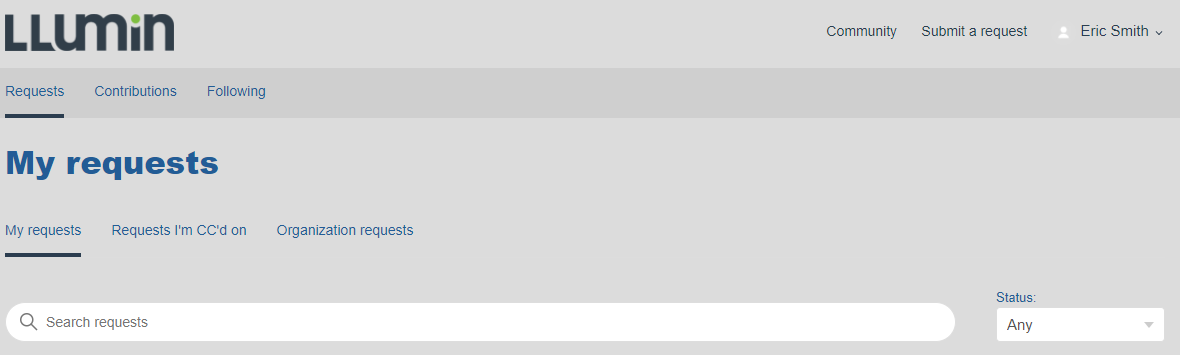
You will be presented with the "My Requests" screen; there are three sections to choose from as shown in the screenshot below:
- My Requests
- This will show all of the tickets that you have submitted to the LLumin READYSupport team.
- Requests I'm CC'd On
- This will show all of the tickets that were submitted by other users that you were added as a CC on.
- Organization Requests
- This will show all of the tickets that were submitted by yourself and other users that are linked to the same "Organization"
- Please note that by default, your user is set to only show those tickets you have submitted. To be added to the "Organization Requests" view, please submit a request to the LLumin READYSupport team or if you are working with a Project Manager, they can also add you to that view.