READYAsset
Title: Work Order Improvements / Fixes
- New Optional Configuration:
- At the time a user creates a Work Order or Work Request, if the asset has an outstanding Work Order(s) or Work Request(s), then a pop-up will appear showing all of those, as well as links to them. The user will have to “X” out of the pop-up to proceed.
- Work Orders that have not started now show all the summary fields in quick edit view.
- A Work Order default priority can be blank; however, it is a required field at the time of Work Order create.
- In Work Order Details, the Total Parts cost is now accurately calculated and reflected in the grid.
- After pressing “create”, the “Click Here to Edit” Navbar Alert will now remain for 10 seconds to allow for modifications.
- Deleting Equipment from a Work Order now uses the Work Order “Edit” permission instead of “Delete.”
- When selecting multiple rows from the home page, the detail page arrows now persist when completing Work Orders.
- The Work Order Worksheet now groups Labor records by the distinct combination of Repair Comments & Time, so only one row is needed to display the work that was done.
- The Project field (and task) is available in WO details, even if you don’t have a project on the Work Order.
- This is enabled with the Project Tracking module
Title: Work Requests “Statistic – “Todays Maintenance Activity”
- The logic behind the “Statistic – “Todays Maintenance Activity stats panel has been updated to reflect new Work Requests created today
- FYI: The Statistics - Open Work Orders stat panel already monitors Unassigned WOs.
Title: Work Order and Recurring Work Finder Search Improvement
- The search box in the Work Order Finder and Recurring Work Finder now allows you to also search by Asset ID and Asset Description.
- The tooltip on the search button reflects this.
- When using the Recurring Work Finder, the quick filter now includes Asset ID, and Asset Description.
Title: Recurring Work Improvements / Fixes
- A Due Date filter option has been added to the Recurring Task Finder.
- Filter options include the following: between, equal to, greater than, greater than or equal to, less than, less than or equal to, not between, not equal
- When using “Trigger Now”, the next Recurring Work due dates for the assets are updated if they are set to update immediately instead of after Work Order completion.
- You are able to specify one Procedure ID at a time in the filter and it will return Recurring Work Orders with that procedure, as well as Recurring Work Orders even when they have more than one procedure.
- On Recurring Work, you are able to trigger one asset to create a Work order.
- FYI: Previously, you either had to trigger all assets or nothing.
Title: Asset Linked Parts Improvements
- When looking at the asset linked parts in asset master, the location and quantity info for parts is now included.
- An "on-hand quantity" field has been added that shows a list of on hand quantities by stockroom and location.
- The Linked Parts grid will hide any stockrooms that aren’t included in the user’s auto filters.
Title: Asset Grid Improvements
- The Asset Nearing Warranty user grid now displays assets that have warranties approaching their expiration date.
Title: Work Request Generate Label Tag
- At the time of a Work Request, there is the ability to print a "Reason for Work " Label.
- This will consist of asset ID, date of request, requested by name, reason for work dropdown and problem description.
- This can be set system wide to always print, prompt to print, or never print.
Title: Fuel Attributes Added
- The following Fuel related attributes have been added to the Utilization History grid in the Asset Master: Qty, Cost, and Fuel Price.
Title: Equipment Drop Down Filtering Fix
- The Equipment Drop Down in Parts & Equipment Used is now filtering on the Available Equipment Divisions.
Title: Condition Assessment Improvements / Fixes
- Safeguards have been added to prevent the condition assessment form from being submitted multiple times inadvertently.
- All file types are now viewable on the Condition Assessment steps.
READYTrak
Title: Label Printing Improvement
- Users have the ability to add Manufacturer Name to the options for label printing at the Item Level.
Title: Item Class Improvements
- At the Item Class level, LLumin supports the ability to have a custom prefix, which overrides the system wide prefix.
- This is in addition to type auto number or manual entry.
- LLumin also supports the ability to have separate item classes per stockroom.
Title: Auto Create Purchase Order Once Purchase Requisition is Approved
- A configurable option exists that enables the auto-creation of a Purchase Order once the Purchase Requisition last approval has been completed.
- A navbar message will reflect the result of this attempt and will provide a link to edit, if needed.
Configuration Options Include:
- The ability to auto-finalize a Purchase Order from a Requisition.
- The ability to determine if Workflows are evaluated on Purchase Orders that have been built from Requisitions, for example:
- Any changes to the resulting Purchase Order will not result in Workflow rules being checked.
- The ability to set the percentage threshold by which a Purchase Order can change.
- Apply those thresholds to approval rules.
- The ability to show the Release link on approval, if the resulting Purchase Order has no additional approvals required.
Title: Transaction History
- Two new columns have been added to inventory transaction history to show the Qty/Price and the Stock Qty/Price.
Title: Vendor Drop Down List Searchable
- You are able to search in the Vendor Drop Down list in the Edit Dialog box for the Reorder List.
Module Updates
Title: Project Module Improvements / Fixes
- When Finalizing a Project with no approvals, the Project status will go to “In Progress”
- FYI: Previously it incorrectly went to “Pending Approval”.
General Updates
Title: Home Page Grid
- The “My Assigned Work Order” Grid and “Open Work Order” Chart, now accurately reflect the same information.
Title: System Set-Up: Condition Assessment
- You are now able to add Custom User Defined Steps for Condition Assessment
- Under System Setup -> Custom Lists -> Checklist Step
- Also, Yes/No/ and NA have been added to the data collection steps
**miscellaneous / minor cosmetic bug fixes are also included
Enhancement Documentation
Title: How to Refurbish a Serialized Component
The Inventory Item in LLumin must be a serialized item and have the ‘Is Component’ box checked in the ‘General Info’ card in the Inventory Master record.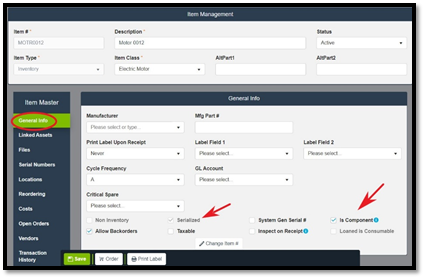
The ‘Serial Numbers’ card in the Inventory Master record will show each serial number’s current status and location.
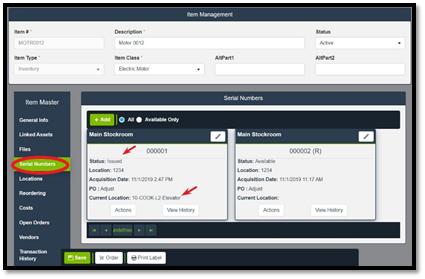
The ‘Actions’ button allows several functions for a serialized component.
The user may:
- Change the serial number status
- Return the serial number to stock, making it available for issuing.
- Send to Vendor via Purchase Order
- Scrap the serial number, recording a salvage value.
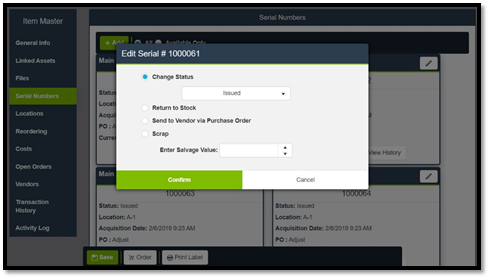
To send the serial number out to a vendor for refurbishment, the user may select ‘Send to Vendor via Purchase Order’ which will add the serial number to the reorder list, waiting to be built onto a purchase order for that vendor. Or the user may directly add the serialized item to a purchase order.
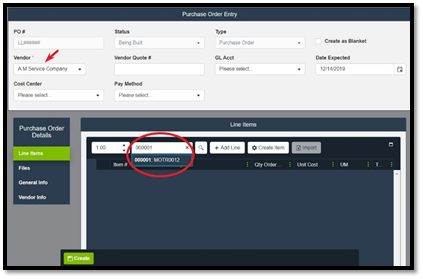
To do this, the user creates a purchase order selecting the vendor to be used to handle the refurbishment. The user then enters the serial number in the PO Lines Quick Search. This returns the serial number and the item number it belongs to.
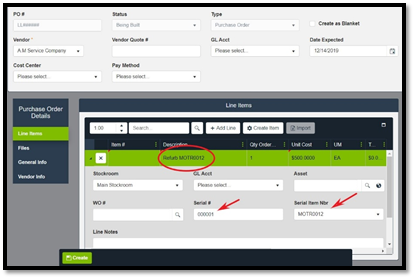
Selecting the serial number adds it to the PO with a description of “Refurbish Item Number.” The serial number selected and the item number to which it belongs are automatically added in the line item details. The Item # on the PO line remains empty. Alternatively, the user can add a non-inventory line representing the service work, then manually add the serial number in the line item details. In either case, the Item # on the PO Line is NOT the serial numbers item number. The PO is then created, finalized, released as a normal PO. Once released, the serial number has a status of ‘At Vendor.’
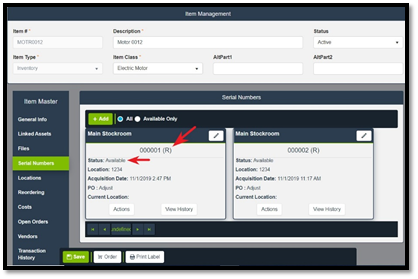
Upon receipt of the purchase order, the serial number is designated as remanufactured by notation of an (R) appended to the serial number. The status of the serial number is updated to Available. The ‘View History’ button will show issues, refurbishments associated with the serial number.