Asset and Work Management
Work Order Type Management:
- Functionality has been added to give finer control to work order processing at the Work Order Type level in four areas:
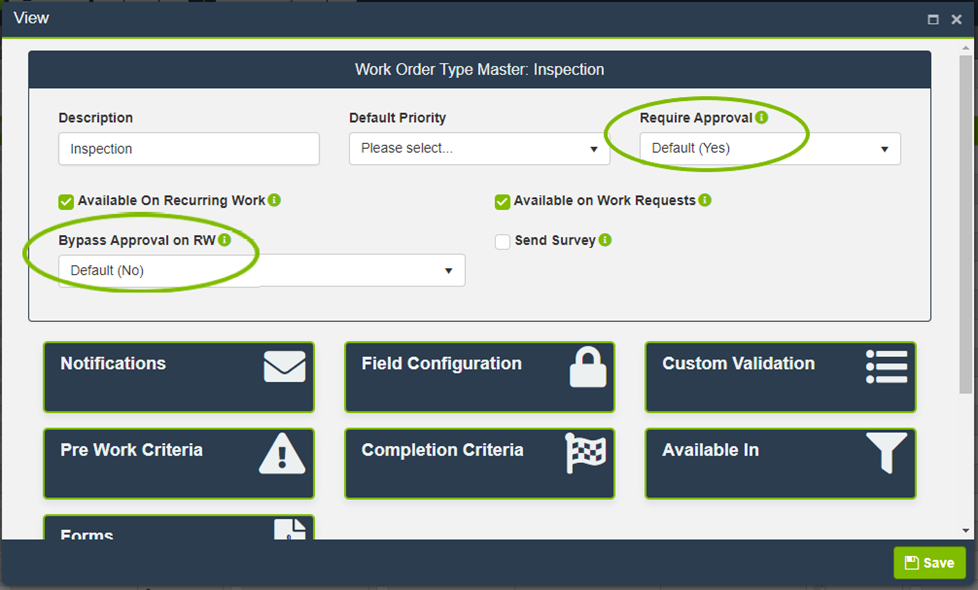
- Requiring Approval: This will add a level in the overall requirement. Example Work Order Type below.
- The hierarchy of the setting is as follows:
- The system level setting found in Configuration Mode -> READYAsset -> Settings
- Which is overridden by the Work Order Type level setting
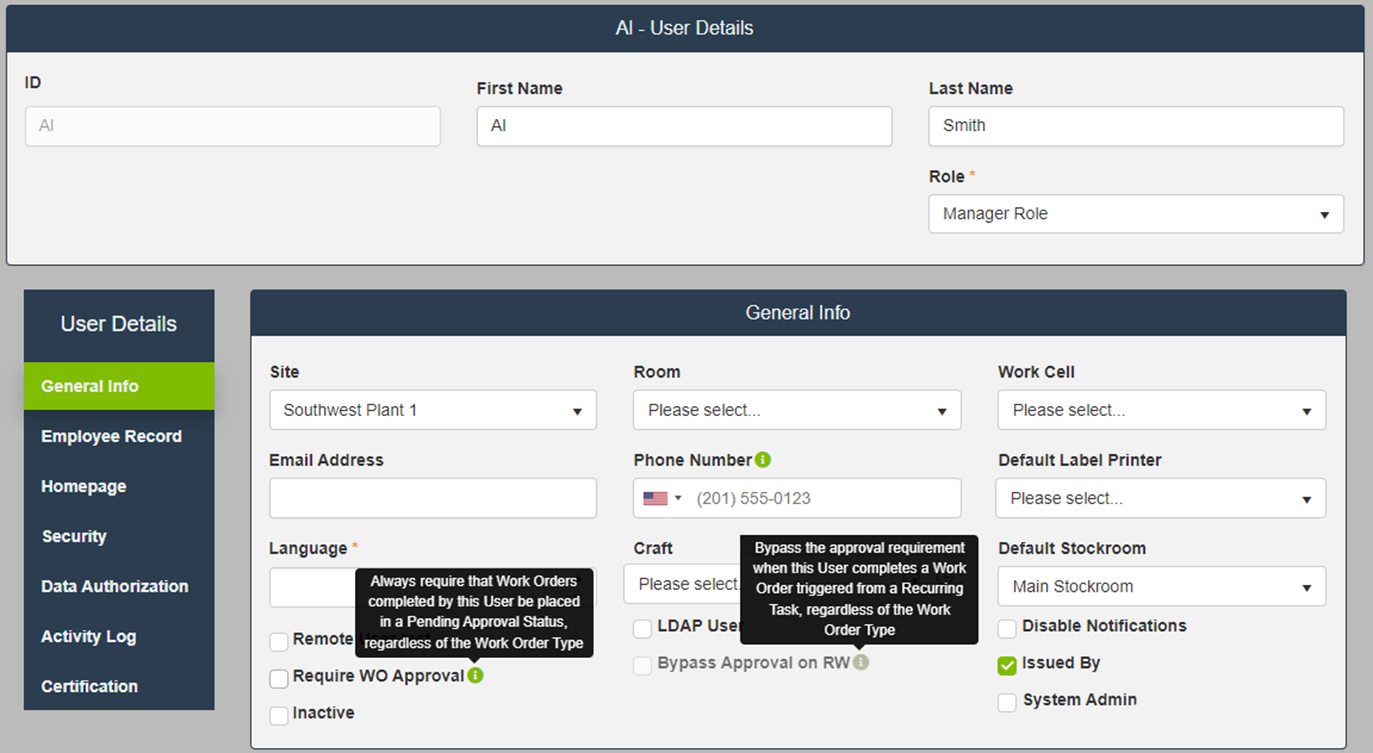
- Which is then finally overridden by the User level setting
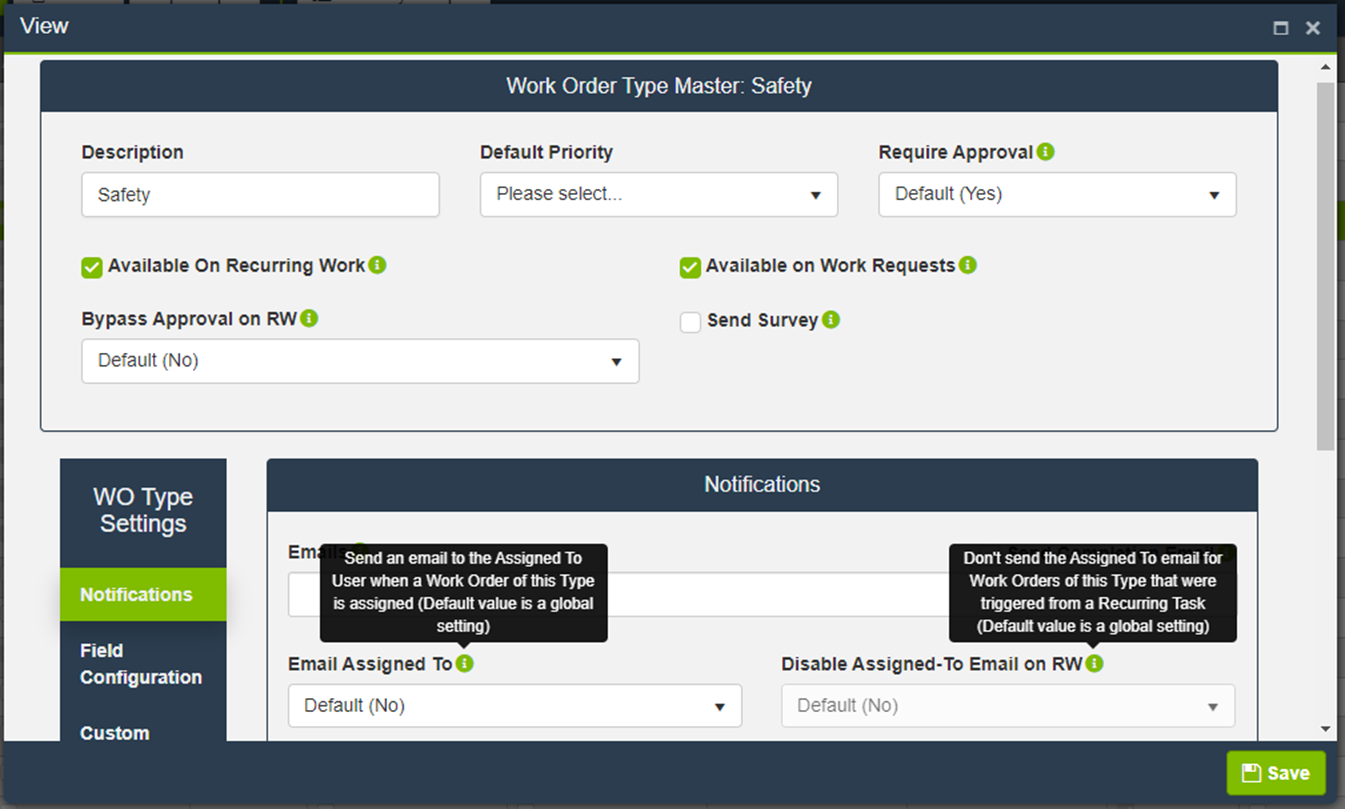
- Emailing Assignee: This will override the system level setting whether an email is sent to the Assigned To when a Work Order of the specified Type is assigned. In conjunction with that option, we have included a subsequent option to disable sending the Assigned-To Email on Recurring Work Orders. Example Work Order Type shown below.
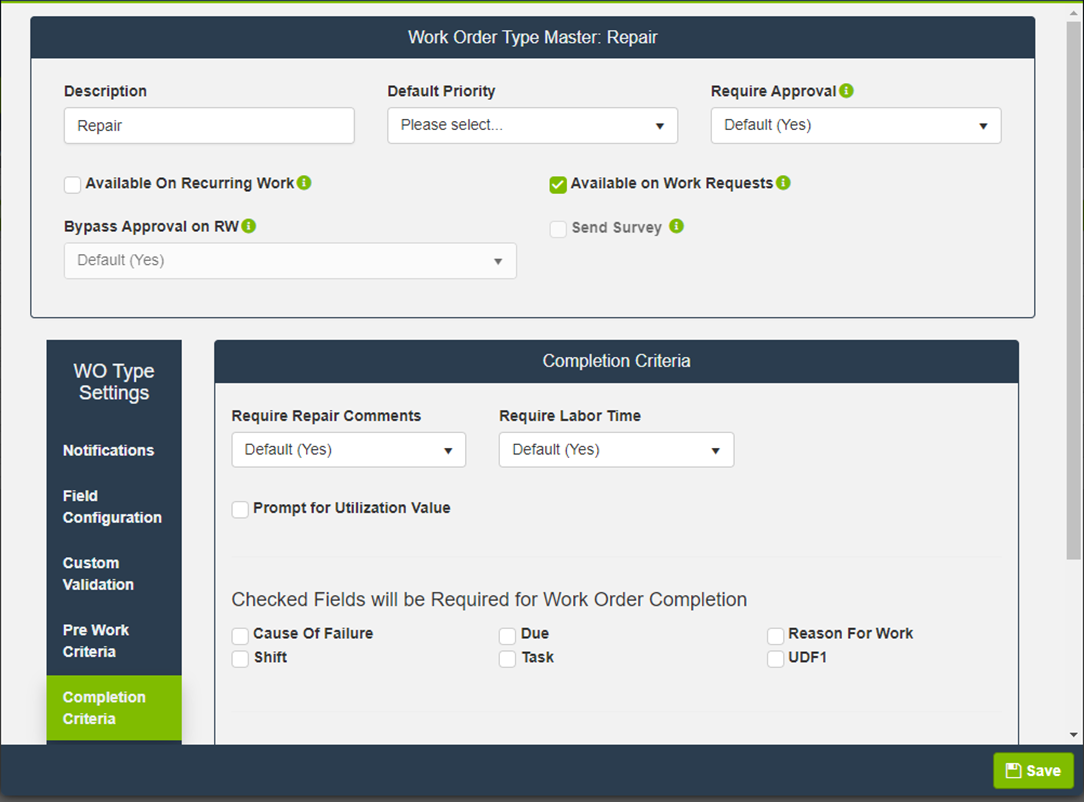
- Requiring Time: This will override the system level setting whether Labor Time is required for a Work Order of the specified Type. Example Work Order Type shown below.
- Requiring Comments: This will override the system level setting whether Repair Comments are required for a Work Order of the specified Type. Example Work Order Type shown below.
- The hierarchy of the setting is as follows:
- Requiring Approval: This will add a level in the overall requirement. Example Work Order Type below.
System Level Setting for requiring approval


Work Order Type-level Setting for requiring approval

User-level Setting for requiring approval

Example of the Work Order Type-level Email Assignee option

Example of the Work Order Type-level Requirements for Repair Comments and Labor Time

Inventory Control & Item Tracking
Item Management
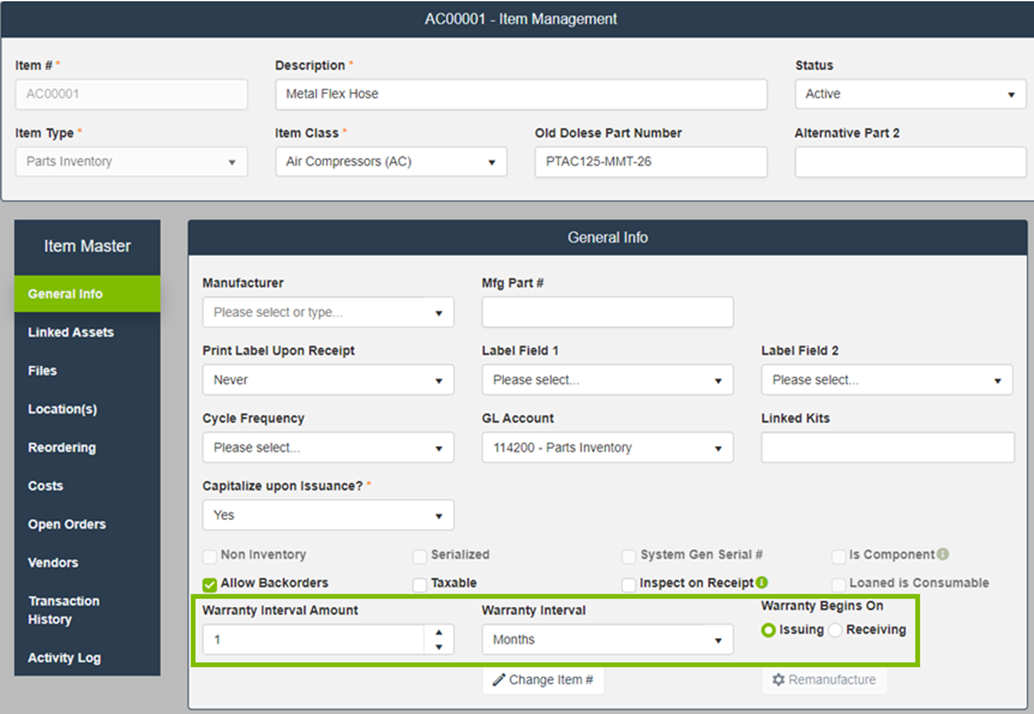
- Warranty Tracking:
- Warranty Interval Amount, Warranty Interval and Warranty Begins on options added to Item/General Info card.
- If this detail is added to an inventory item, a pop-up message will appear when issuing this item with the details of the last time this item was issued to this asset.
- Warranty Interval Amount, Warranty Interval and Warranty Begins on options added to Item/General Info card.
Example Item Highlighting Warranty Fields

Purchase Orders
- We have added a system configuration option to allow users to enter Purchase Order Receipt Line specific pricing. The Receipt Line pricing would be used when creating the Item’s cost record and would not affect the initial Purchase Order Line pricing.
- We have exposed the system configuration option that determines the percentage change required to elicit re-approval of a Purchase Order. This system configuration is used in conjunction with the Workflow module.
Purchase Requisitions
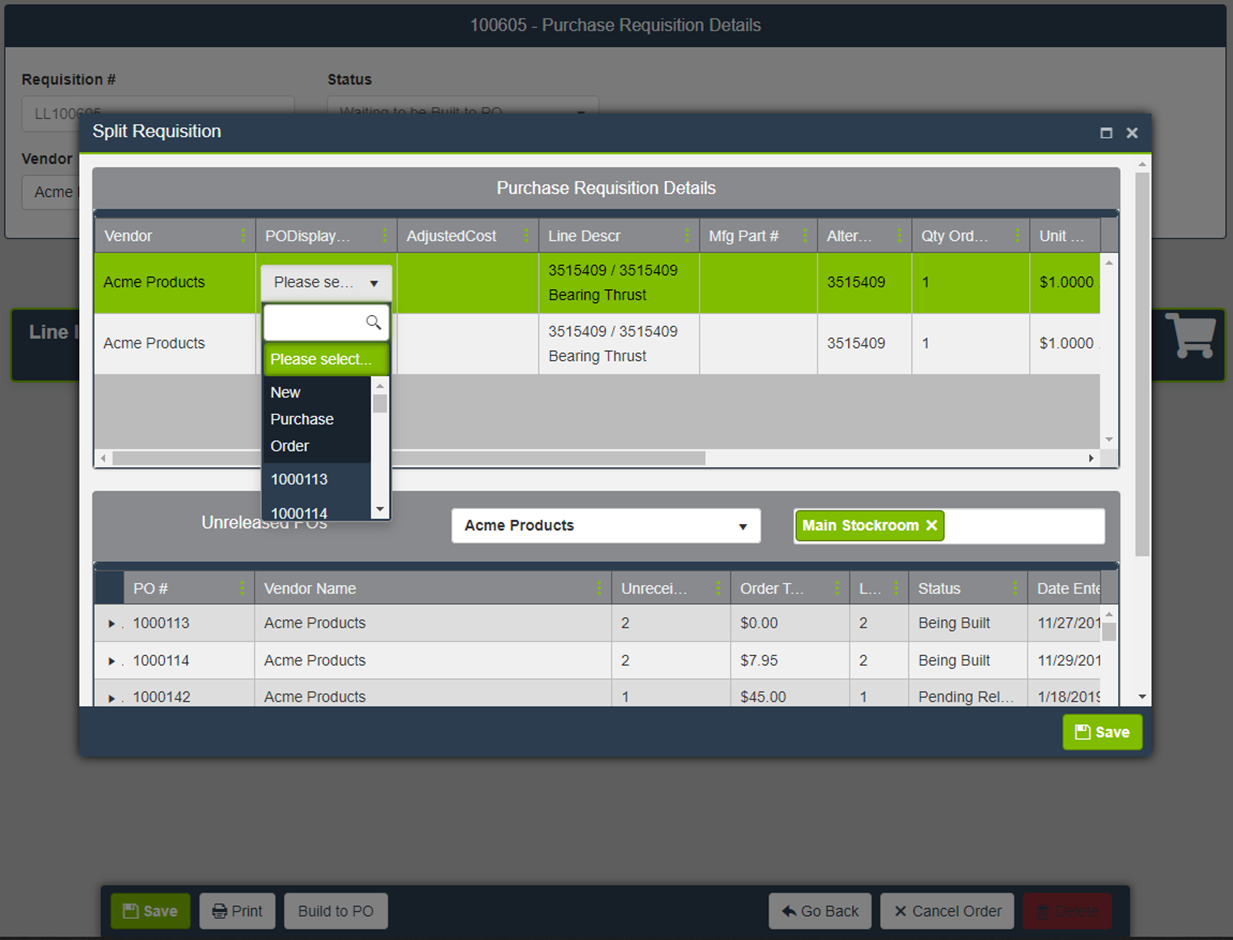
- We have added functionality to split a Purchase Requisition into multiple Purchase Orders enabled through a system configuration option.
- With the system configuration option enabled, clicking to build a Purchase Requisition to a Purchase Order will prompt a “Split Requisition” popup that will show each line on the Purchase Requisition and a list of Unreleased Purchase Orders for the same Vendor and Stockroom as the Purchase Requisition.
- The user can then use a drop-down to either link one of the Purchase Requisition lines to an existing Purchase Order or build to a new Purchase Order.
Example Purchase Requisition

Label Printing
- We have added a system configuration option to add “Stockroom – Location” to Item labels.
Count Inventory Screen
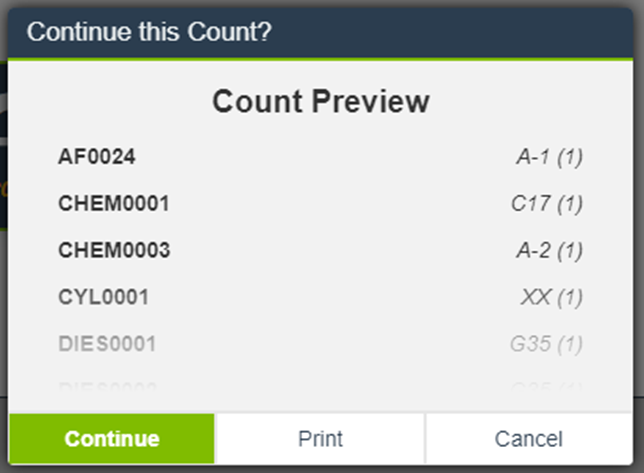
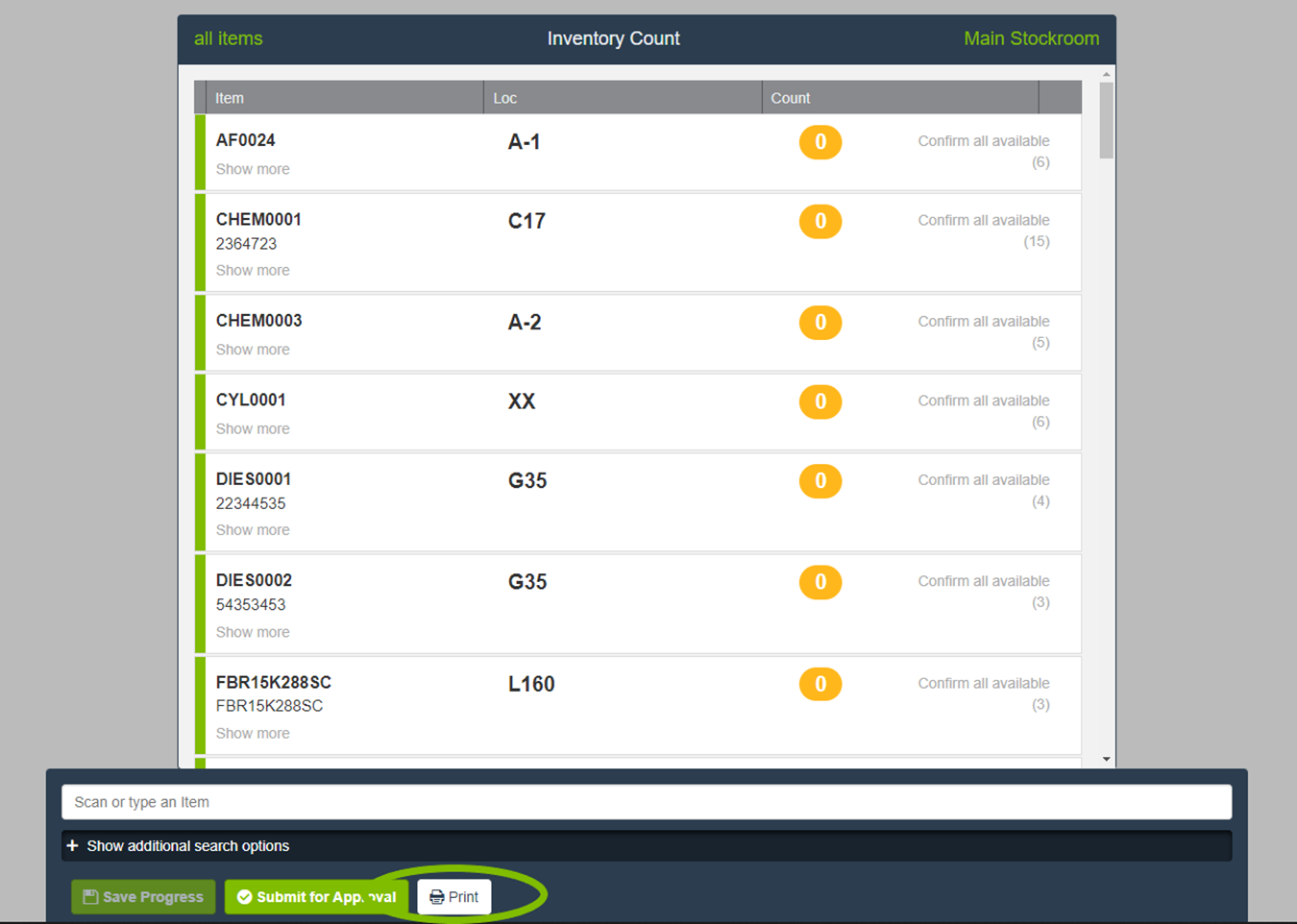
- We have added a Print button to the Count Inventory screen which will print a dynamically generated Cycle Count Worksheet report.
Examples of Print Button

Homepage
KPI Tiles
- In response to user feedback, we have added default groupings for “Down Assets” to show data by Department and “Open Work Orders” to show data by Work Order Type.
Minor Improvements
- Item Usage Transaction Logging: Additional transaction logging added to for items issued to an Asset to log the Assets Org Structure, GL Account and Cost Center at the time of the usage transaction.
- Asset Cost Center field: Field added to the Financial Information card on the Asset Master record.
- Improved transaction logging around Vendor updates when the “Available In” checkboxes are checked or unchecked.
- Vendor Pricing: If a vendor is added to or changed on a PO, a pop-up message will appear asking if the user would like the PO updated with the new vendors price and vendor part number from the Vendor Part card on the Item.
- Addressed an issue causing Issue Line-level Comments to be un-editable.
- Added a “Select All” option for Asset linked parts.
- Minor updates to GIS interface.
- Resolved issue with Purchase Requisition finder not respecting the configured prefix.
- Various enhancements, color scheme changes, defect fixes and performance improvements.